
This end-user guide explains how to create, edit, and submit Confirmation documents for services delivered against a Purchase Order. It covers all available confirmation types, step-by-step creation, adding planned and unplanned services, new feature enhancements, and final submission requirements. Icons and color-coded callouts are included to improve clarity and usability.
Available Confirmation Types
You can create different types of confirmations based on your service or contract setup:
-
Default
-
Timesheet
-
General Measurement
-
Scaffolding
1. Start Creating a Confirmation
-
Open the Purchase Order (PO) Detail Screen.
-
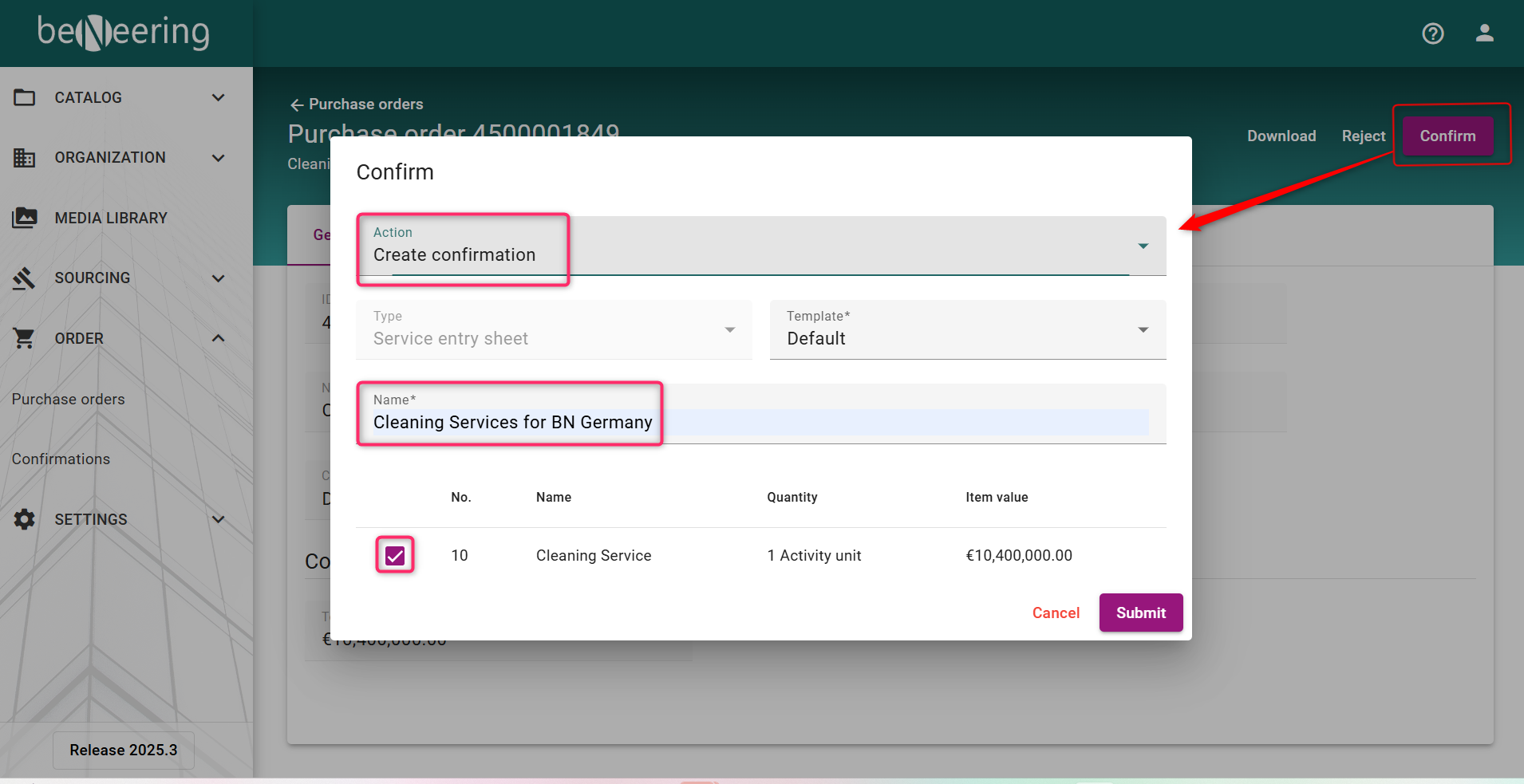
Click Confirm → Create Confirmation.
-
Enter a Document Name that clearly represents the delivered service.
Note: Only PO items eligible for confirmation will appear with checkboxes.
-
Items not shown may be:
-
Not yet acknowledged
-
Already marked as Final Delivery
-
2. Confirmation Draft Creation
After submitting the initial form:
-
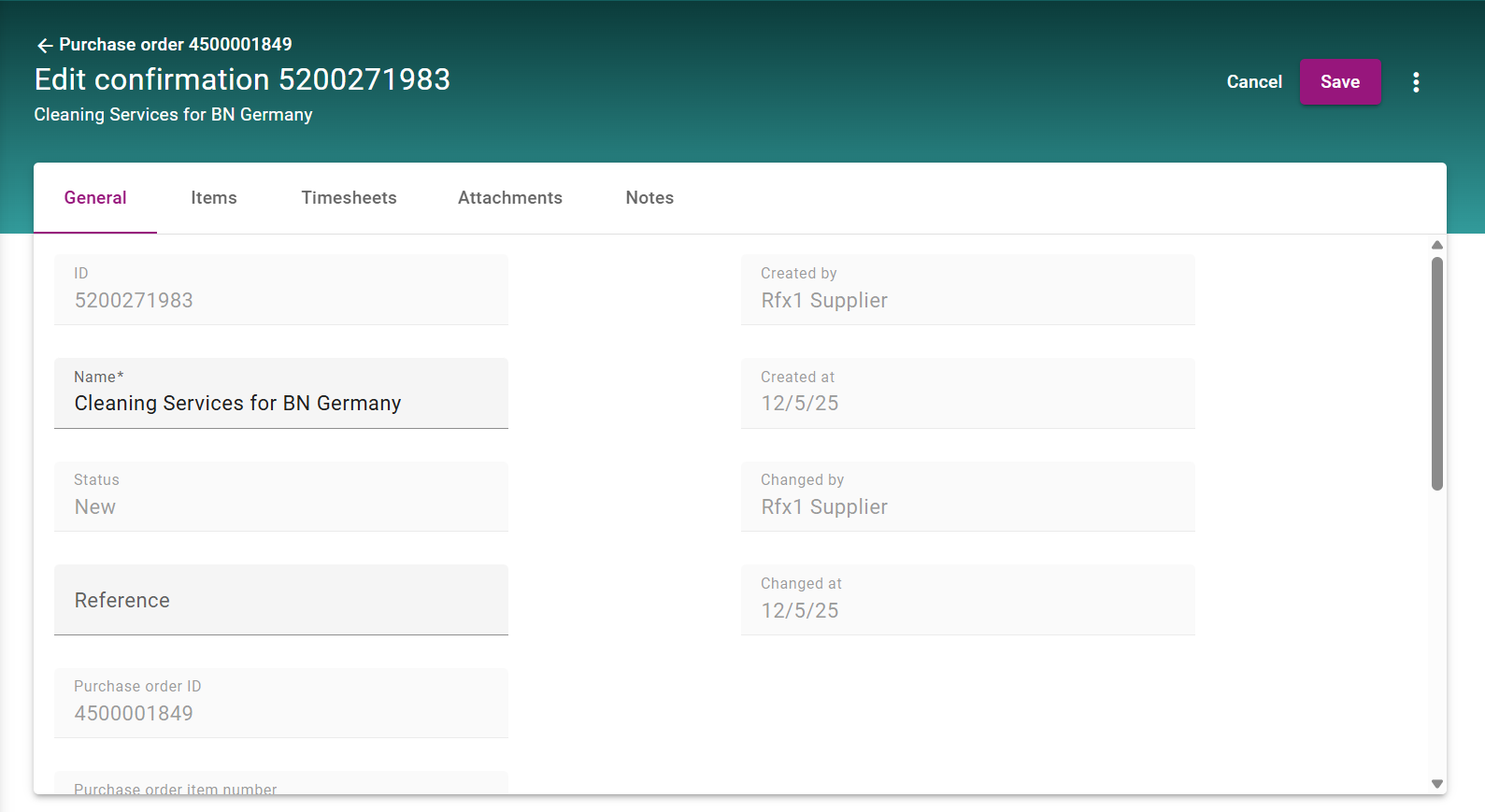
A draft document named Confirmation 520000**** is created.
-
It remains in Draft status.
-
You must now add the relevant service items.
Tip: Use a descriptive title to make tracking easier.
3. Adding Items to the Confirmation
New Feature Update: The system now supports enhanced handling of Planned and Unplanned Services, offering more flexibility when creating confirmations.
Navigate to the Items tab to add service items
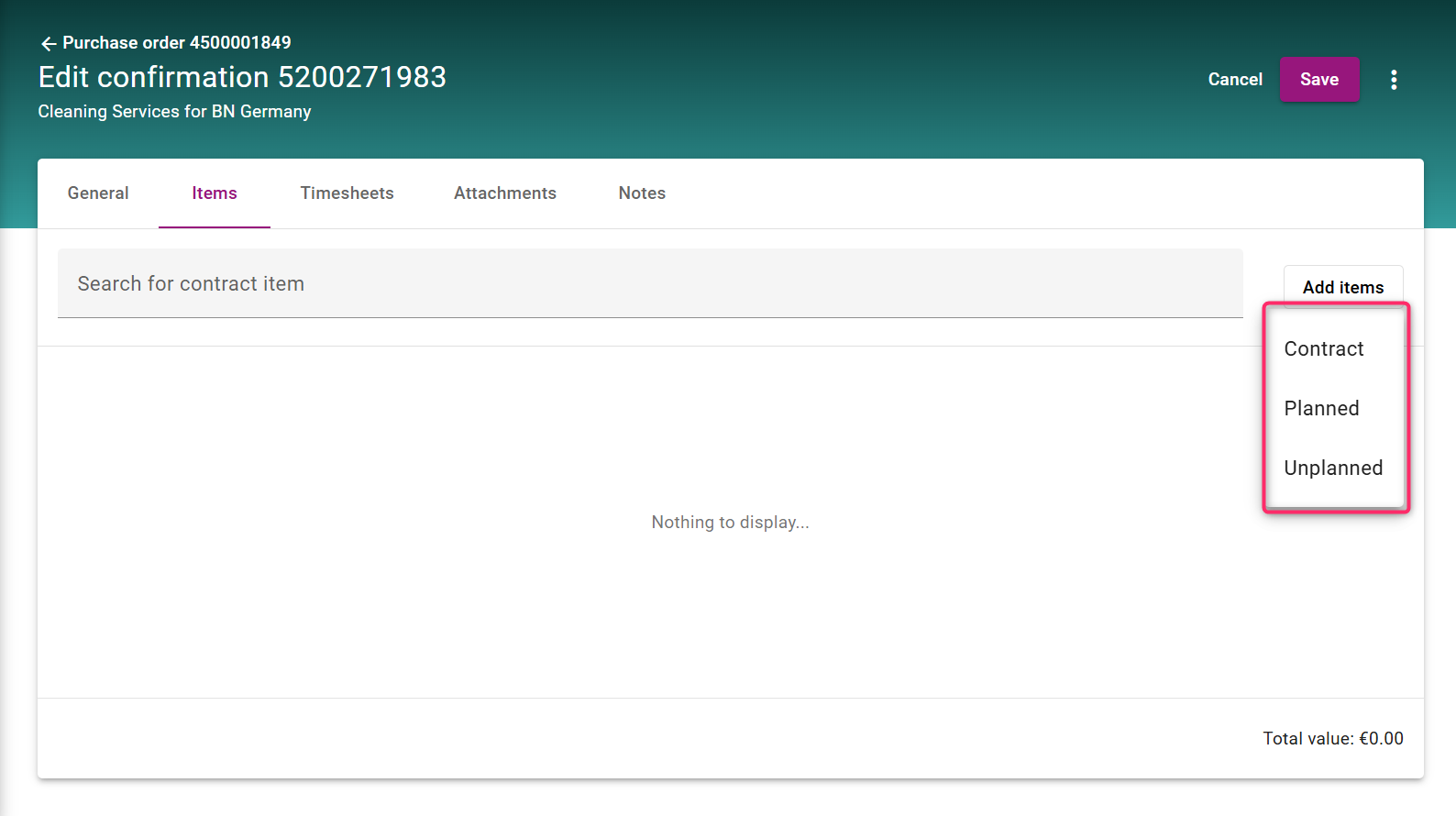
The actions available for adding new items to a confirmation depend on the contract type you have with your customer. You can use the following options to include items in the confirmation:
|
Action |
Description |
|---|---|
|
Advanced Search |
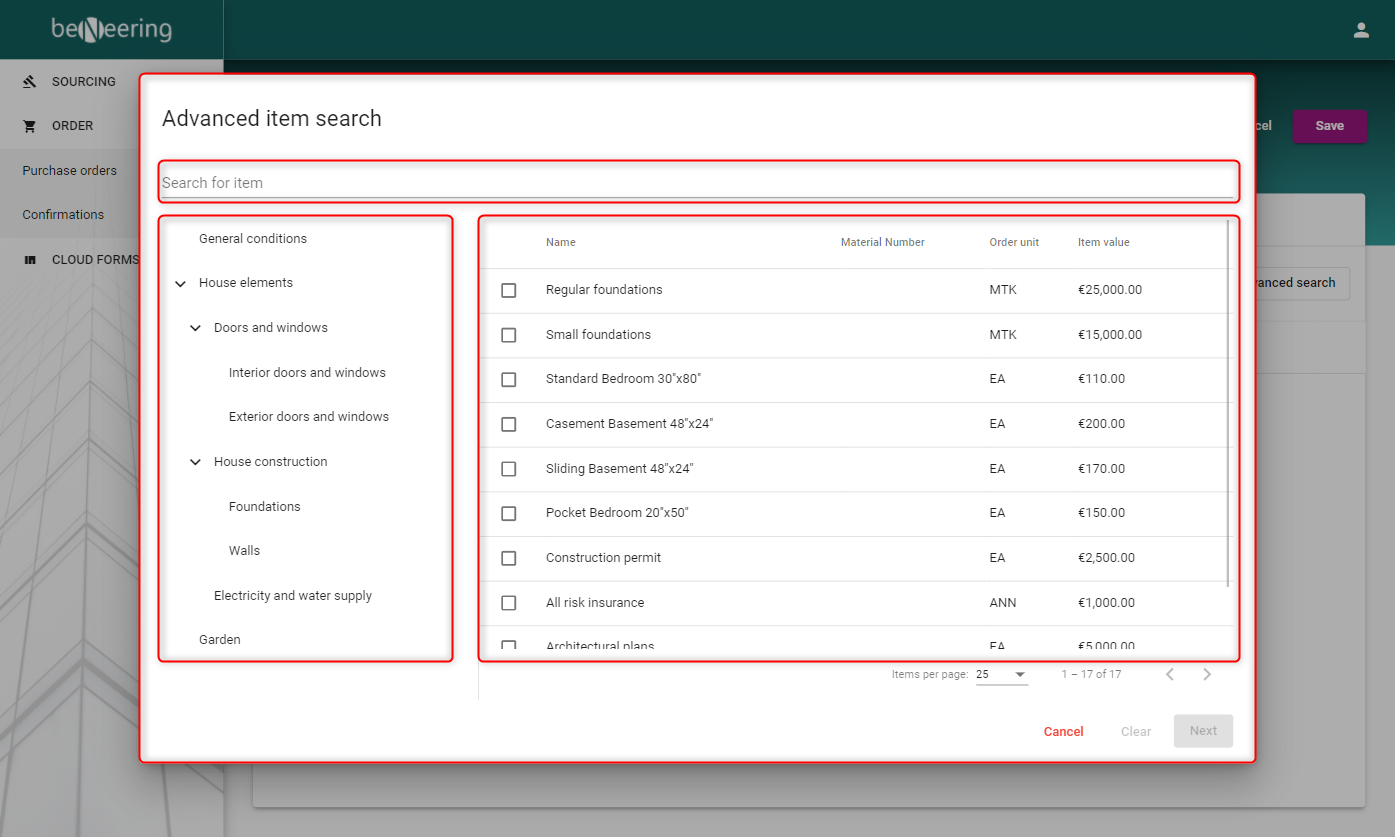
If this button is available, you can add items from the existing contract to the confirmation. Use either the Advanced Search button or the search field to locate the items you want to confirm. |
|
Planned items |
If the Purchase Order from your customer includes planned items, you can select one or multiple items and update the quantity you have delivered. |
|
Unplanned items |
If the Purchase Order includes a limit value, you can also add freetext items to the confirmation. These items require both a description and pricing information. |
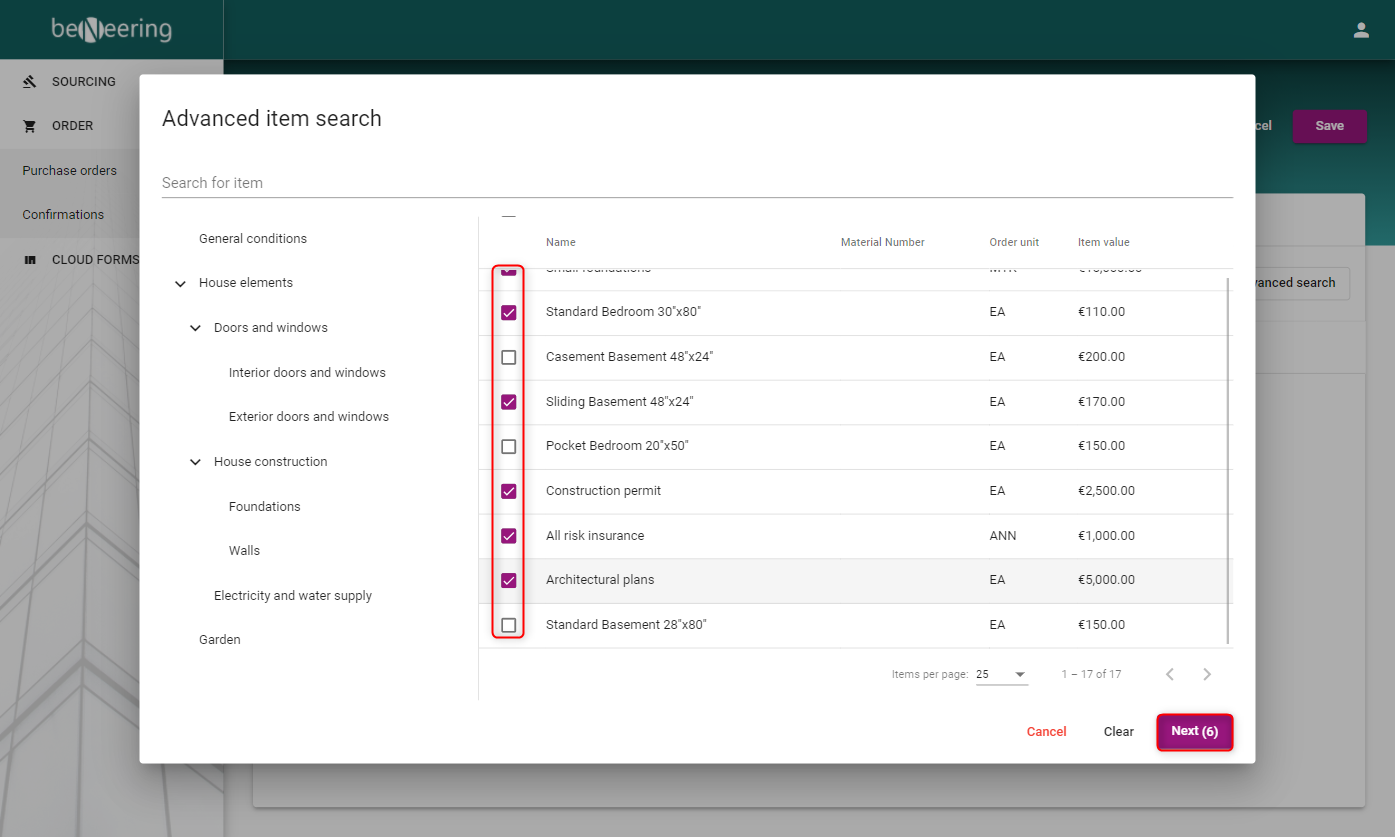
A. Advanced Search (Contract Items)
Use this option to add contracted items.
-
Click Advanced Search or use the search field.
-
All contractual items with pricing will be displayed.
-
You can browse using:
-
Keyword search
-
Left-hand side tree structure
-
After selecting items, you must confirm quantities.
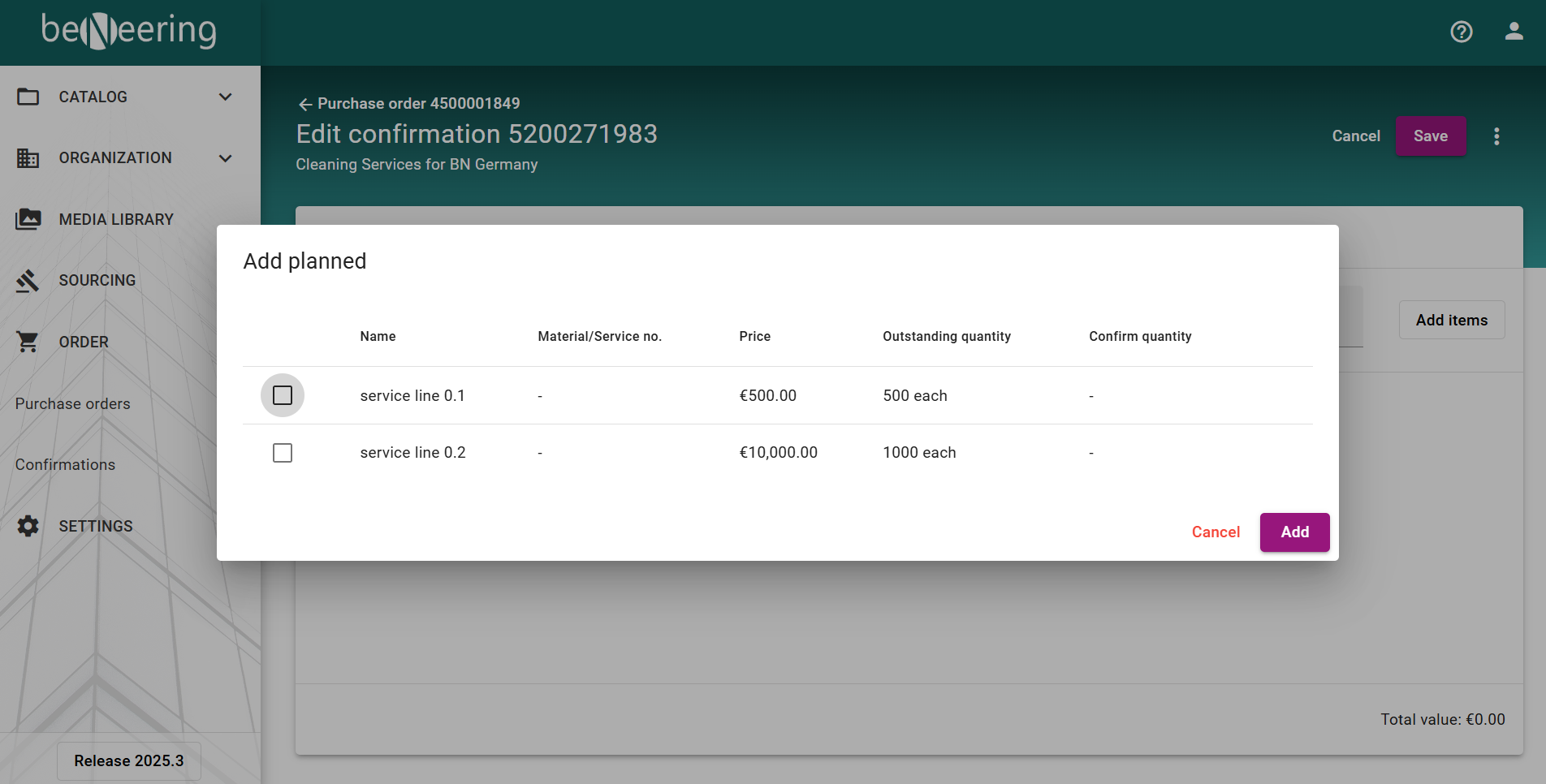
B. Planned Items (From Purchase Order)
Enhanced Planned Services: Planned items now include improved quantity validation and clearer service descriptions.
If your PO contains planned service items:
-
Select one or more items
-
Update delivered quantity accordingly
C. Unplanned Items
Enhanced Unplanned Services: You can now enter richer details including service duration, measurement units, and custom pricing notes.
If the PO has a limit value, you can add unplanned (freetext) items.
These require:
-
A description
-
Price/value information
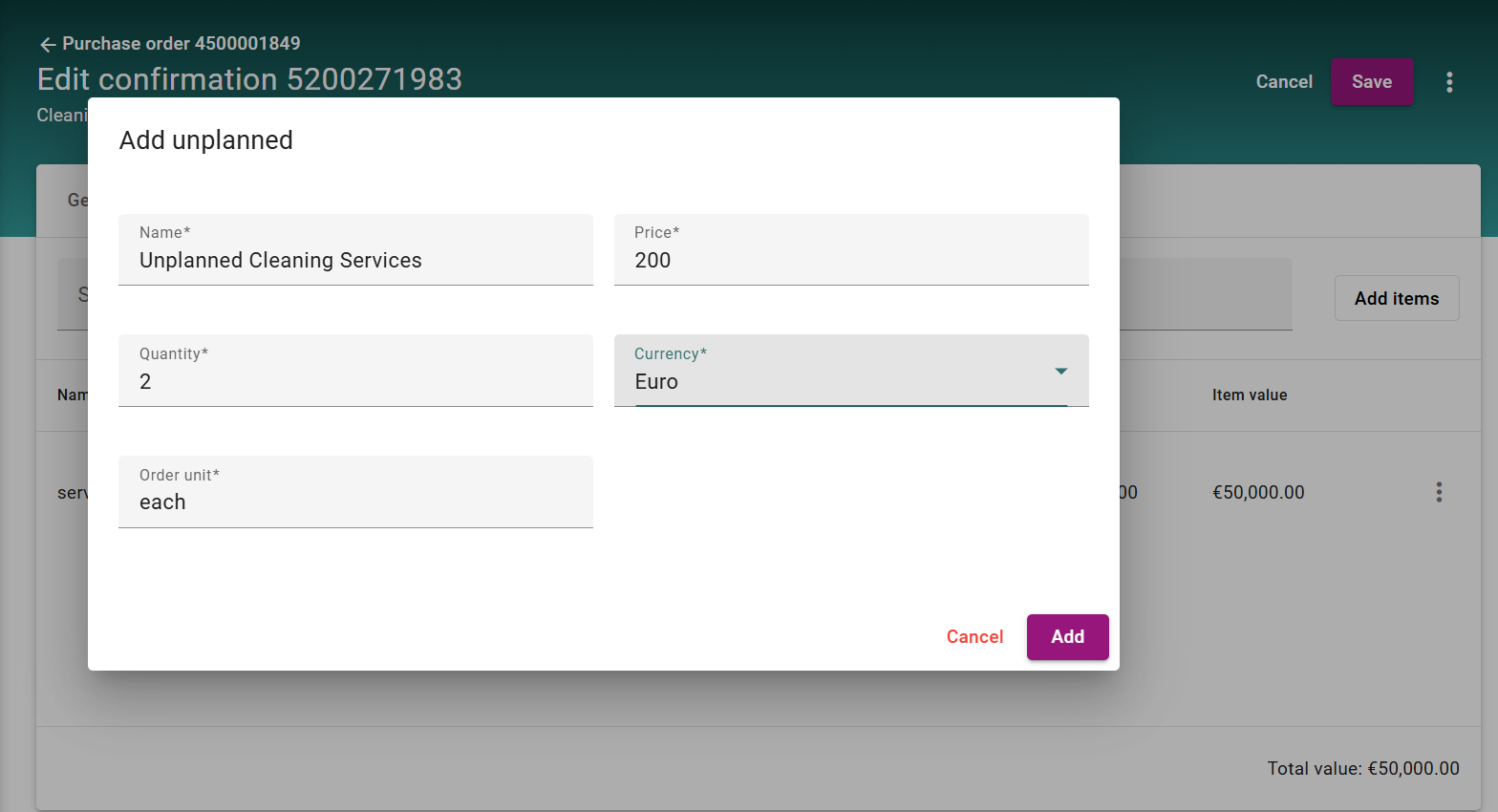
Ensure all mandatory fields (description, unit, amount, price) are completed to avoid submission errors.**
If the PO has a limit value, you can add unplanned (freetext) items.
These require:
-
A description
-
Price/value information
Ensure that all mandatory fields are filled to avoid submission errors.
ATTENTION
You are still not yet done. Now you have to Save this document first, and then you must Submit this document.
The delivery of your submitted confirmation to the customer depends on how the system is configured. After submission, the confirmation may appear in one of the following states:
-
Pending Customer Approval
The confirmation has been sent to your customer and is awaiting their review and approval. -
Pending Transfer to Customer
The confirmation is ready but has not yet been transferred because the transfer process is currently on hold. You will need to initiate the transfer to the customer’s SAP system. -
Transferred but Awaiting Customer Acceptance
The confirmation has been transmitted to the customer; however, it may still require acceptance within the customer’s SAP system.
Transfer Confirmation - https://supplier-help.beneering.com/en/dc4sup/a/transfer-confirmations-to-customer
Delivery Completed - https://supplier-help.beneering.com/en/dc4sup/a/delivery-completed
IMPORTANT: You are not finished yet.
You must:
-
Save the document
-
Submit the document