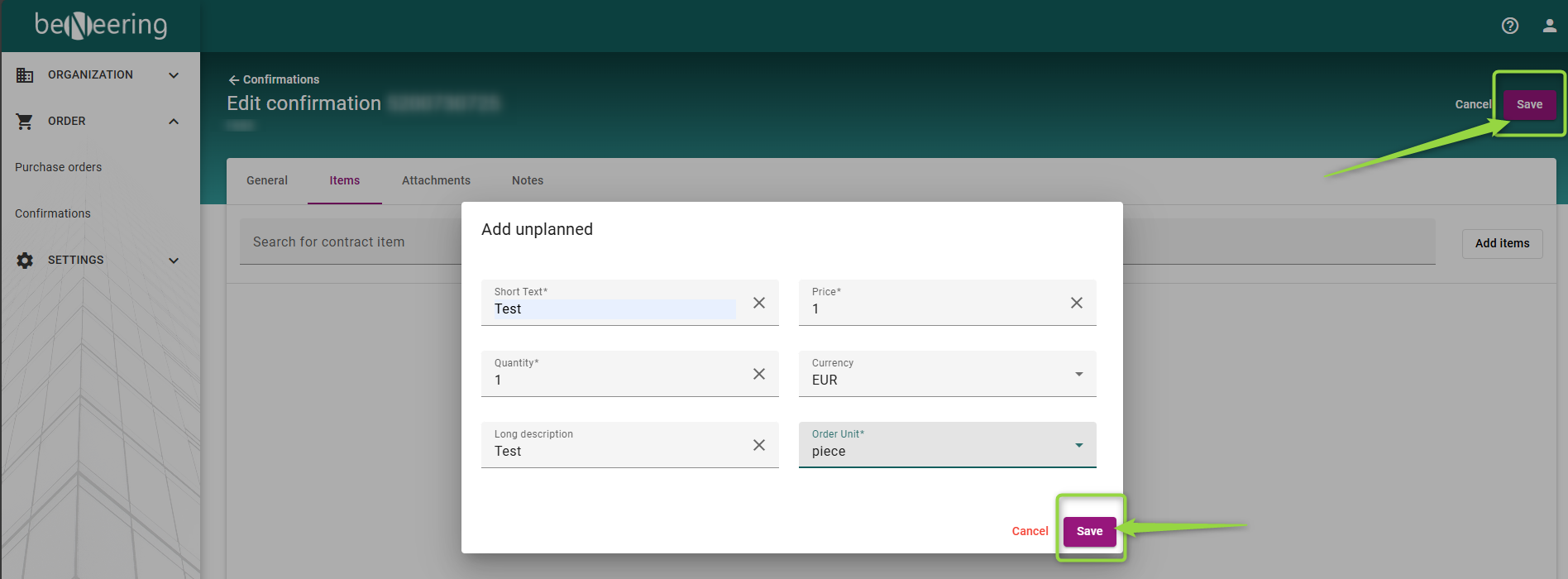
The Supplier can now select the Option of unplanned services in the Confirmation:
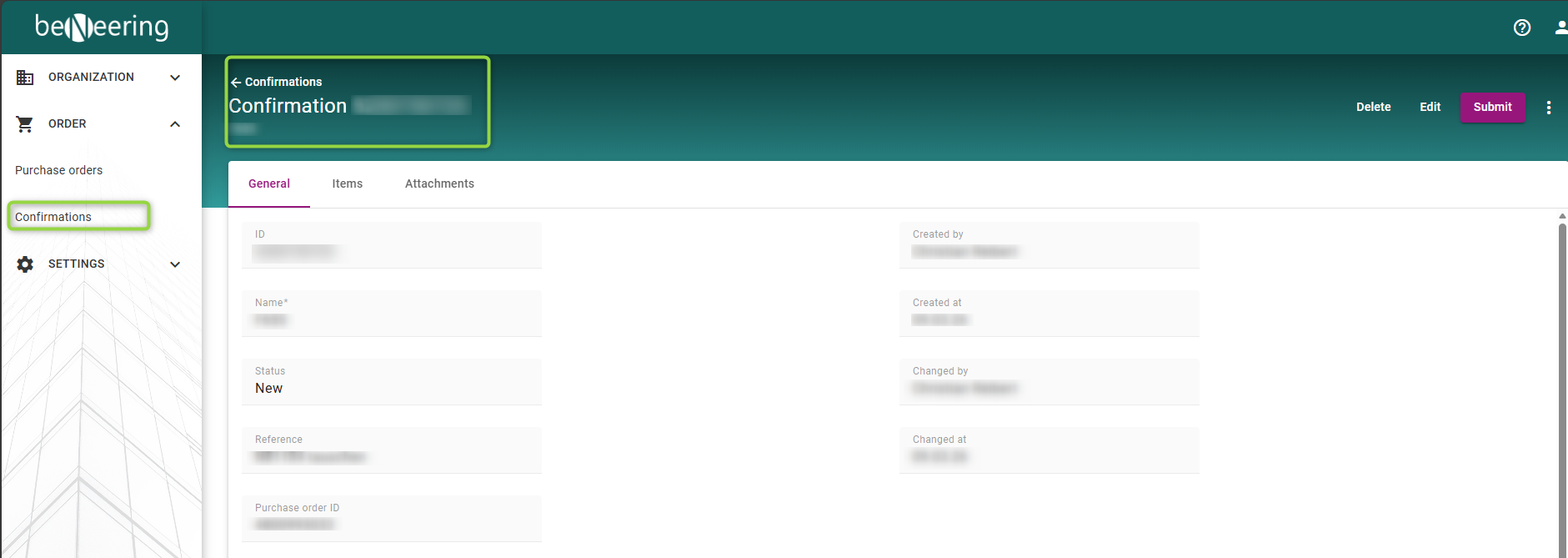
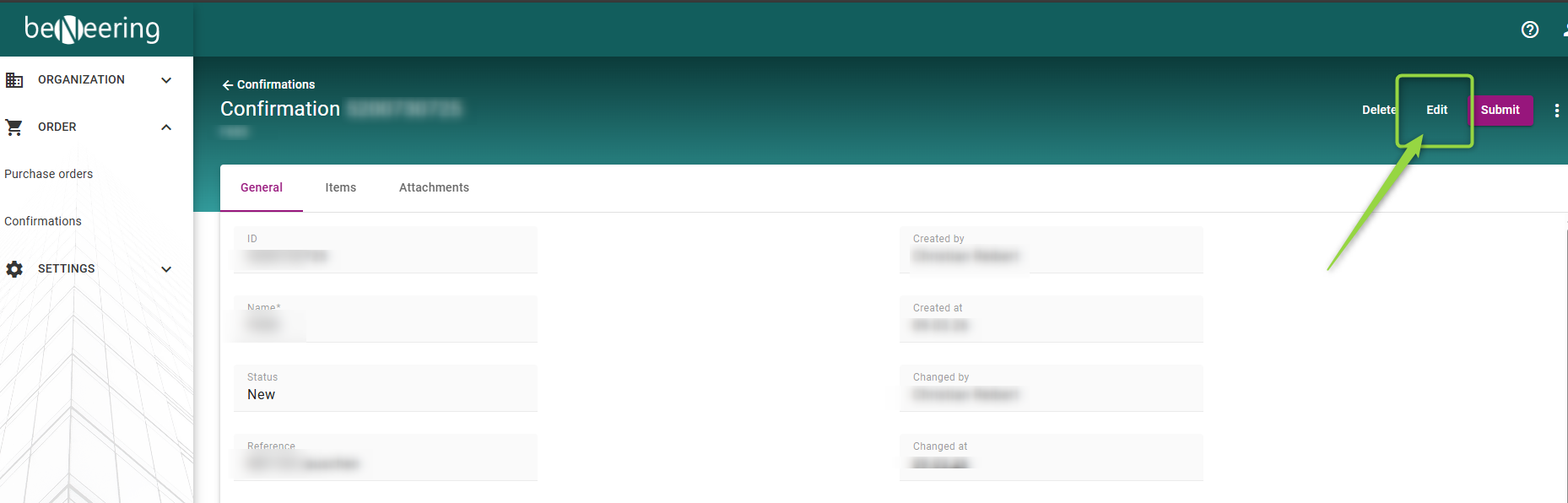
To find the unplanned service you need to select the Edit Button in the Top right corner:
Then you need to select the Tab “Items” and then go to “add items”
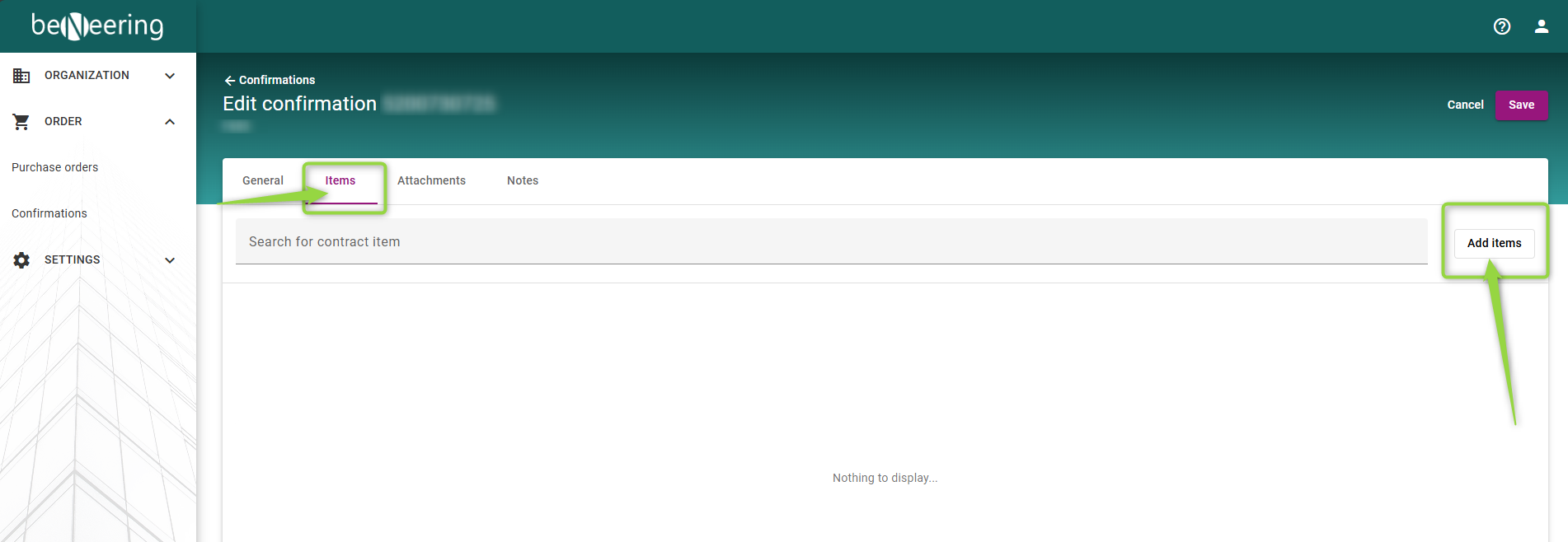
Here you will find the Option to add either a Contract or planned and unplanned items:
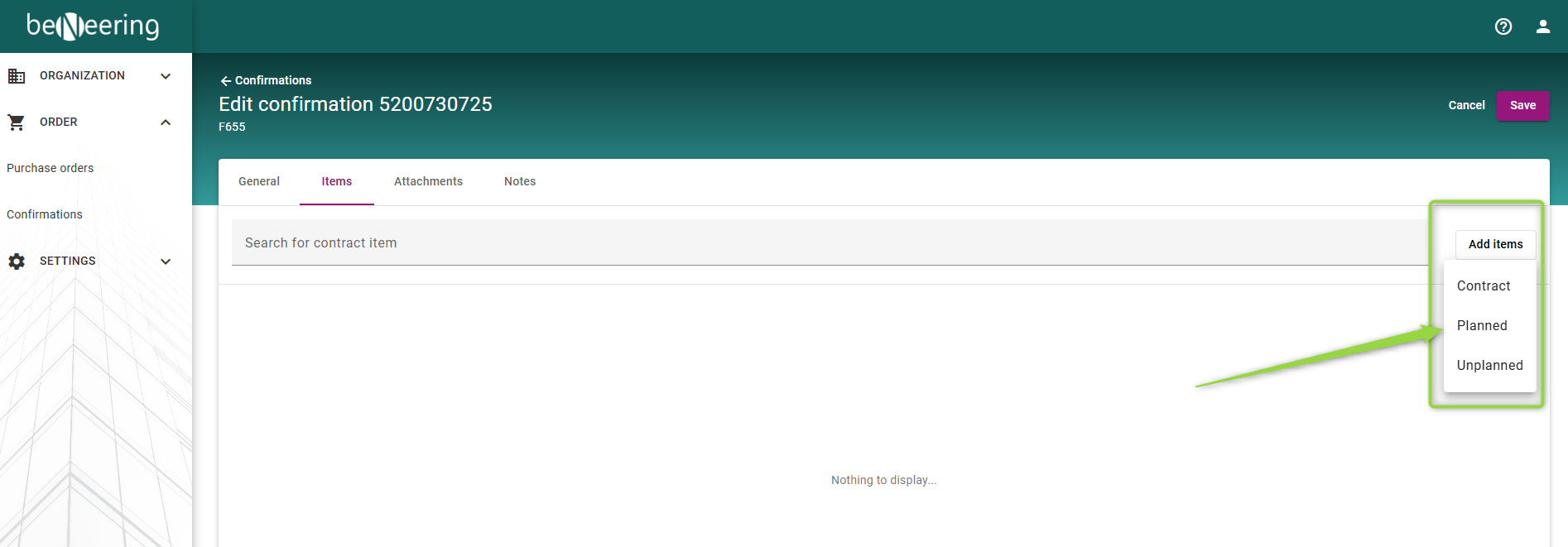
Please note that the position “Planned” cannot be selected, only contract or unplanned services.
In unplanned services you have the option to add:
-
Short Text description
-
Quantity of the service
-
Long Text description
-
Price Amount
-
Currency
-
Order Unit of the service
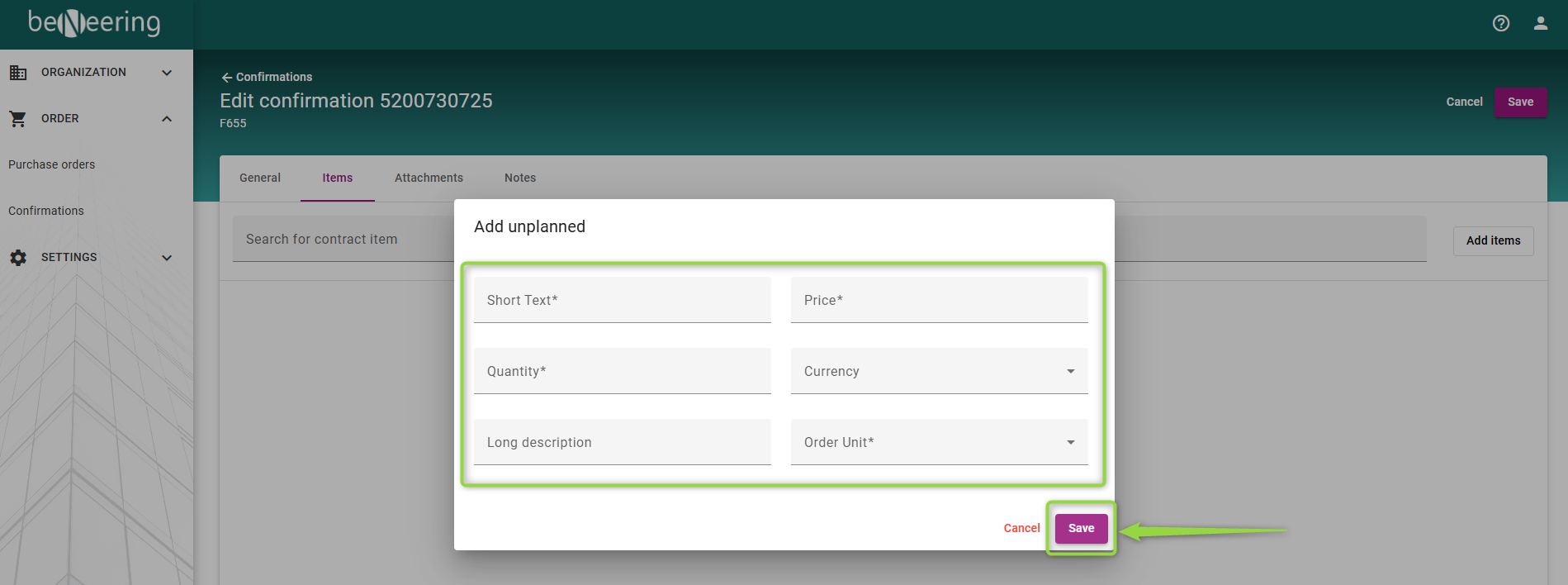
The fields marked with a star ( * ) are mandatory to be filled out.
Please do not forget to save the edit service after you finish by selecting the “save” button two times: