
This page explains how to download a MIME Report for images from a catalog. The MIME Report helps you verify the image information stored in the catalog and identify incorrect or missing image links.
Downloading the MIME Report
-
Navigate to the Container where the catalog has been uploaded.
-
Locate the required catalog.
-
Click on the three-dot menu (⋮) on the right side of the catalog.
-
Select “MIME Report” from the menu.
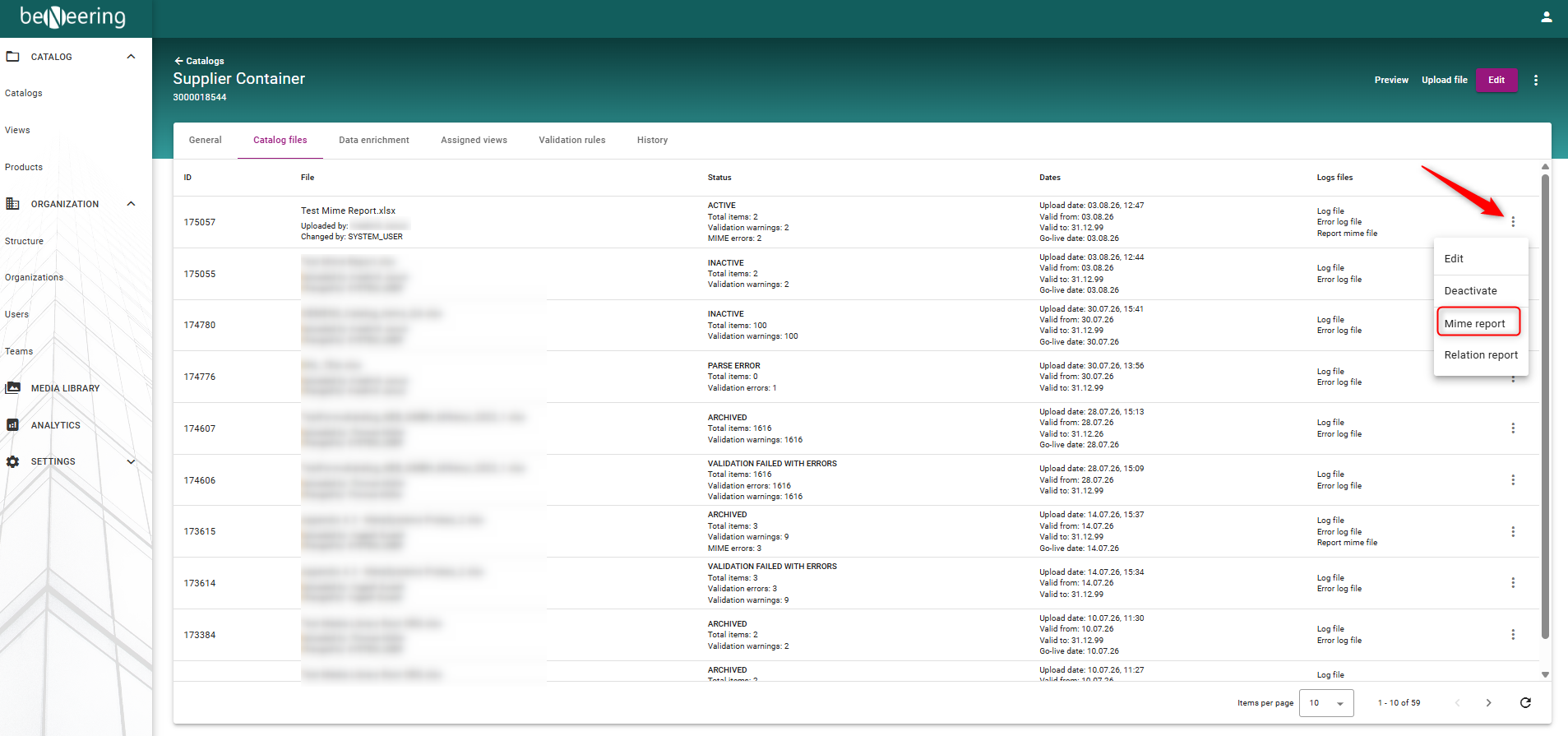
After completing the previous step, click the "Report mime file" option on the right-hand side. The system will download a report containing all MIME-related errors found in the catalog.

The downloaded MIME Report provides an overview of all images assigned to catalog items and can be used to check whether the image URLs are configured correctly.
Understanding the MIME Report
The MIME Report shows the image links and related information for each catalog item.

|
Field |
Description |
|---|---|
|
The unique identifier of an item. Each item has its own unique ExtID. |
|
The unique supplier number maintained by the customer. |
|
The supplier-specific item number or identifier of the product. |
|
Defines the purpose or type of the image (for example, product image). |
|
Defines the file type or format of the image. |
|
Contains the image path or URL where the image is stored. This field should be checked carefully if images are not displayed correctly. |