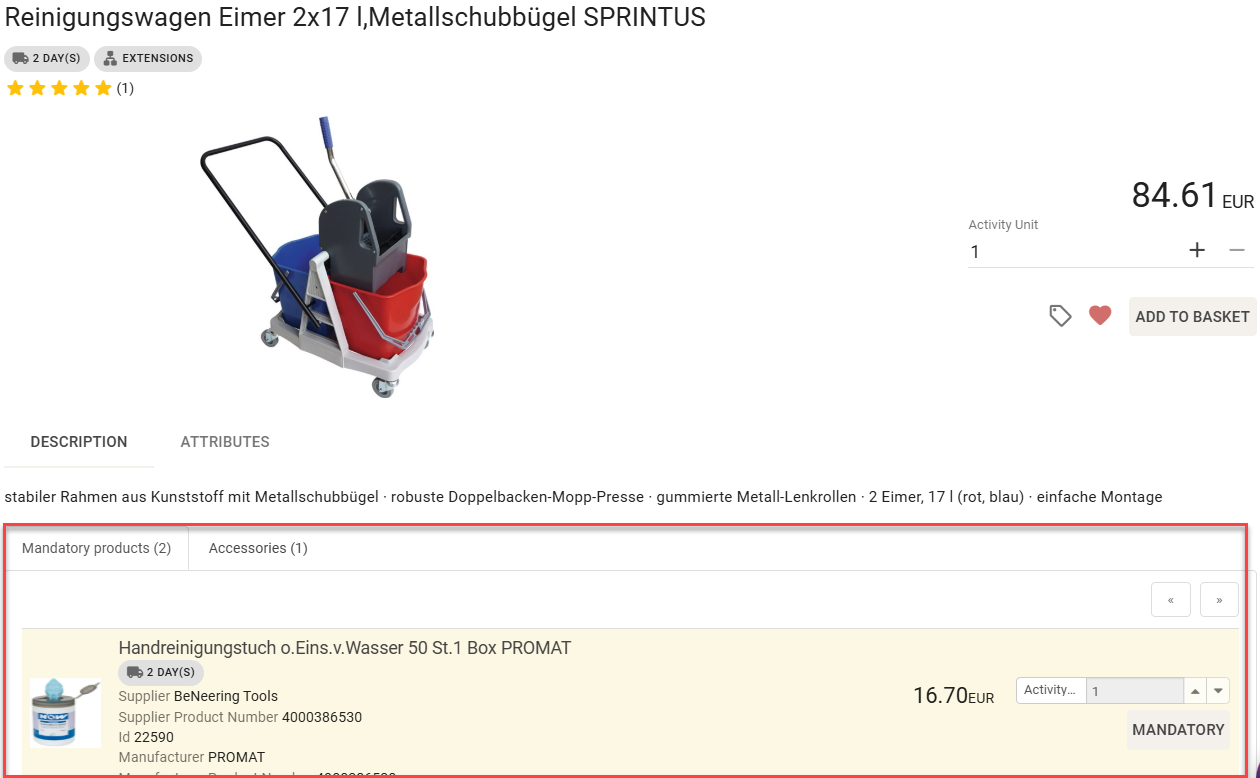
Relations / Linking products requires specific data to establish a valid system reference. Ensure you have the following information:
-
Supplier ID
-
Supplier AID
-
Catalog Container ID (Conditional) – Only required if the linked product belongs to a different catalog than the main article.
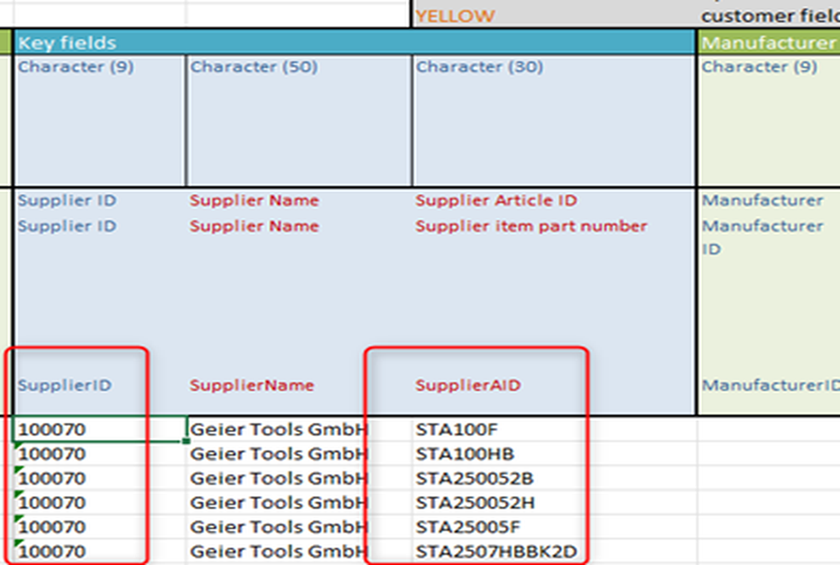
Step 1: Gather the Product Details
Before opening the template, make sure you have the following information for the related product:
-
The Supplier ID and Supplier AID (Article ID).
-
The Catalog ID / Container ID (only if the related item lives in a completely different catalog than the main product).
Step 2: Fill Out the Template
-
Enter the Product Identifiers Input the
SupplierIDandSupplierAIDof the related product into their respective columns. -
Add the Catalog ID (If Applicable) If the related product is from a different catalog, enter its
Catalog Container ID. If it’s in the same catalog, leave this column blank. -
Choose the Relation Type Specify how the products are related (e.g., accessory, spare part).
Note: If you leave this blank, the system will automatically default the relation to Mandatory.
-
Set the Basket Logic (Mandatory vs. Optional)
-
Type an "X" in the mandatory column if this item must be added to the shopping basket automatically with the main product.
-
Leave it blank if the item is optional.
-
-
Set the Display Order Enter a position number to determine where this related product appears visually on the catalog page (e.g., entering
1puts it at the top of the list). -
Define the Quantity Enter the required quantity for the relation (if there is a minimum order quantity threshold)
Product relation types define how related items connect to the main product. These relations are shown in shop groups and help guide users toward relevant or required items.
Below are the main relation types with their descriptions.
Relation Types
|
Type |
Description |
Possible as Mandatory? |
accessories
|
Items that extend or enhance the functionality of the main product. |
Yes (with step 4.5 above) |
similar
|
Items that serve the same purpose and can be used interchangeably. |
Yes (with step 4.5 above) |
sparepart
|
Replacement items used for repair or maintenance of the main product. |
Yes (with step 4.5 above) |
followup
|
Newer or more advanced items that serve the same purpose as the main article. |
Yes (with step 4.5 above) |
consists_of
|
Component items that together form a parts list for the main product. |
Yes (with step 4.5 above) |
mandatory
|
Mandatory items |
Yes (with step 4.5 above) |
mandatory_default_quantity
|
Mandatory items with fixed quantity |
Yes (with step 4.5 above) |
mandatory_choose_quantity
|
Mandatory items where quantity needs to be selected |
Yes (with step 4.5 above) |
mandatory_choose_item
|
Mandatory items needs to be choosen |
Yes (with step 4.5 above) |
Example in Excel file
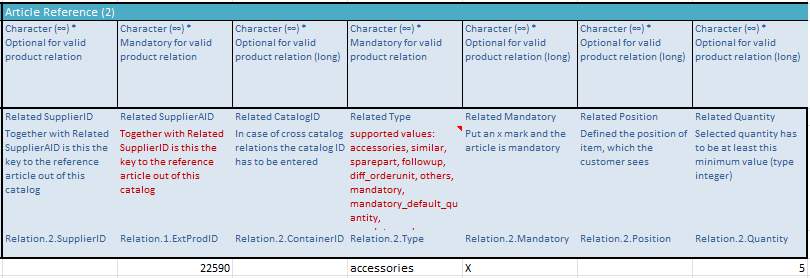
Example excel file
BeNeering Excel Template Relations.xlsx
Example in frontend