
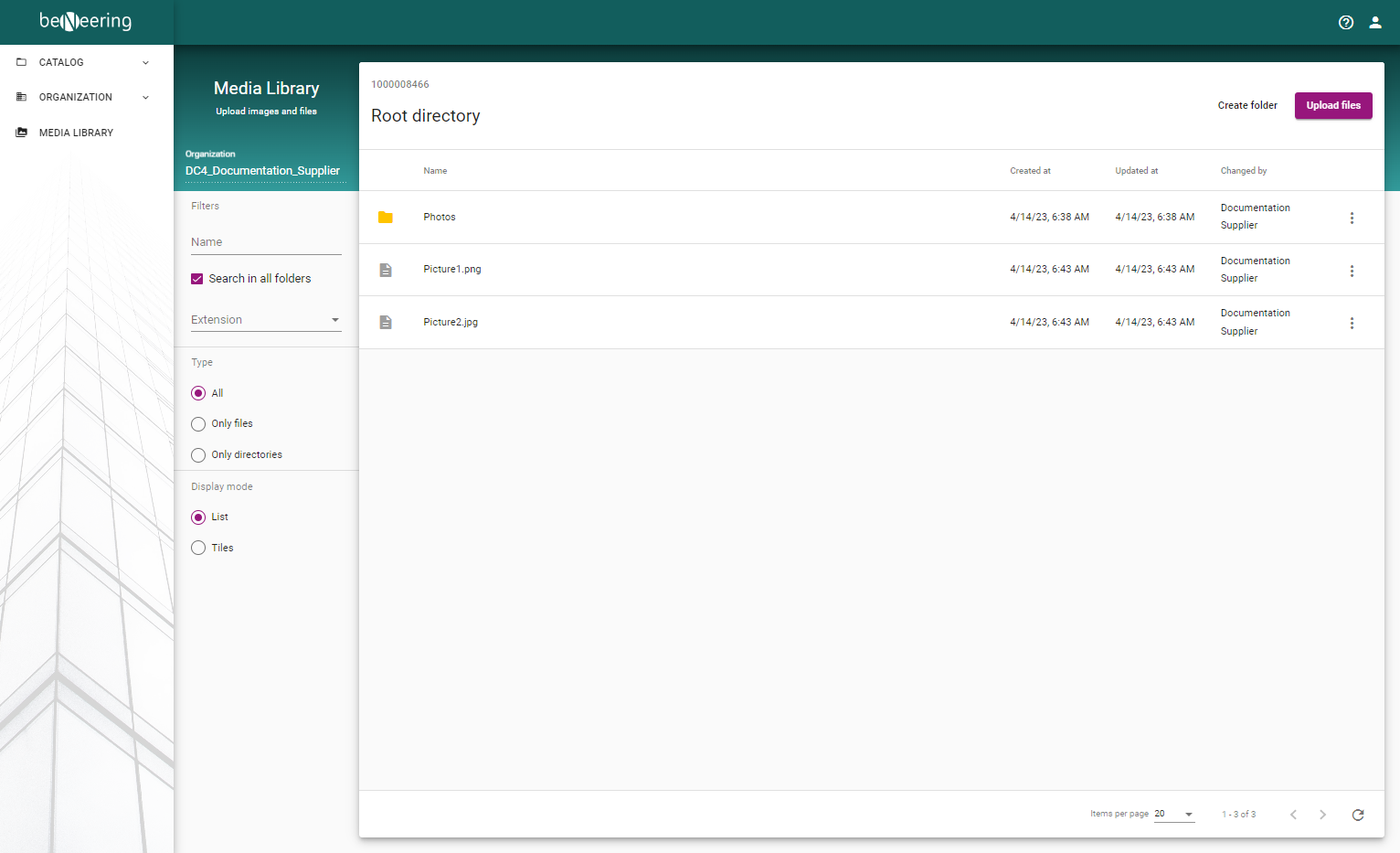
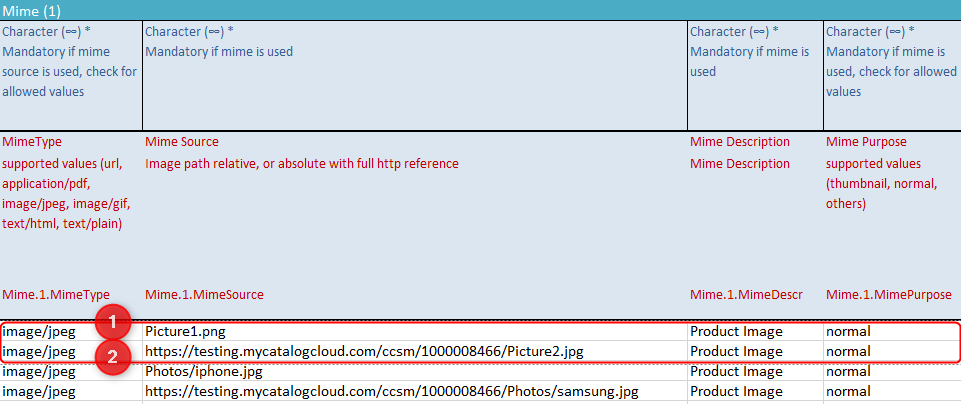
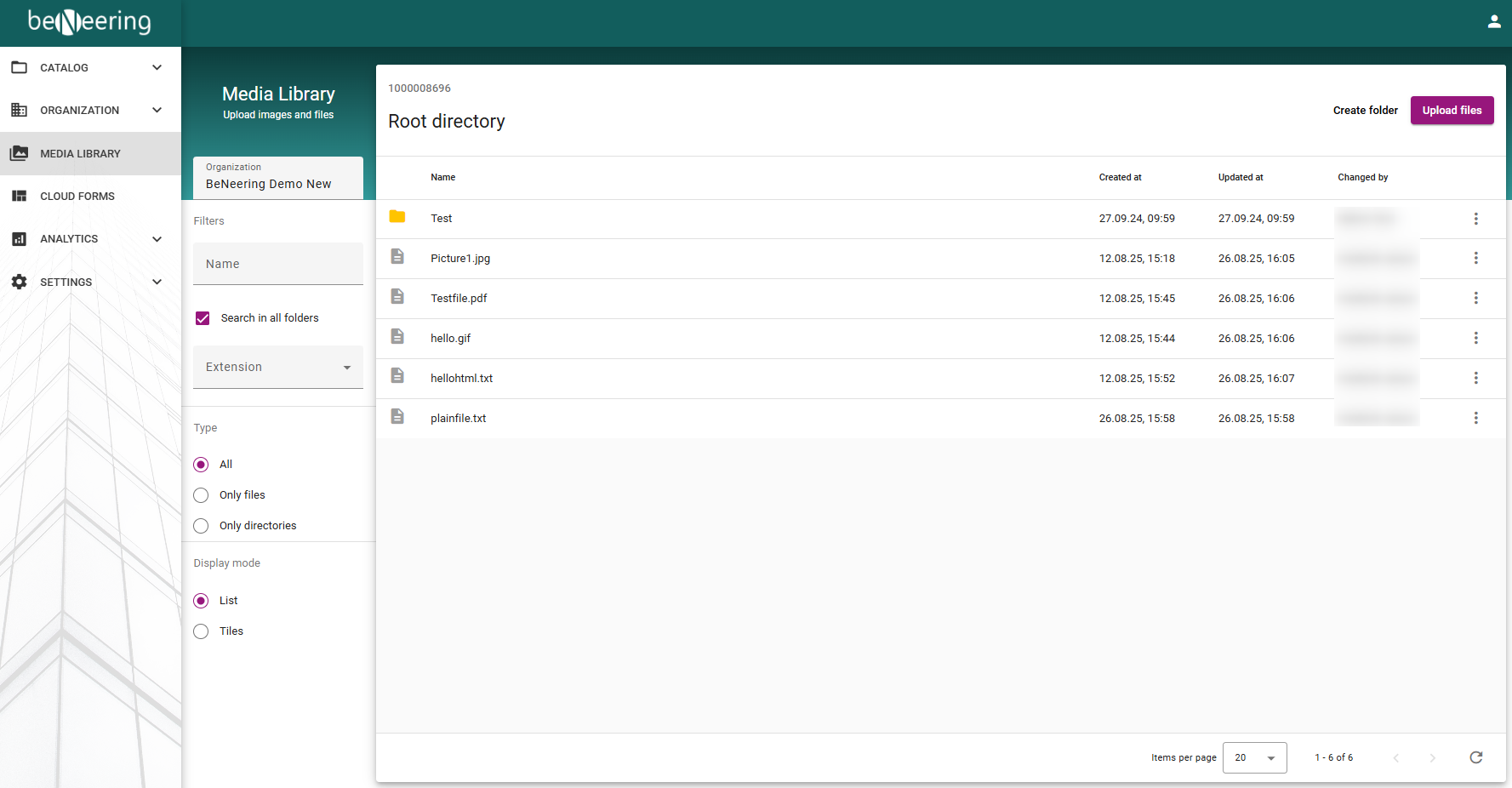
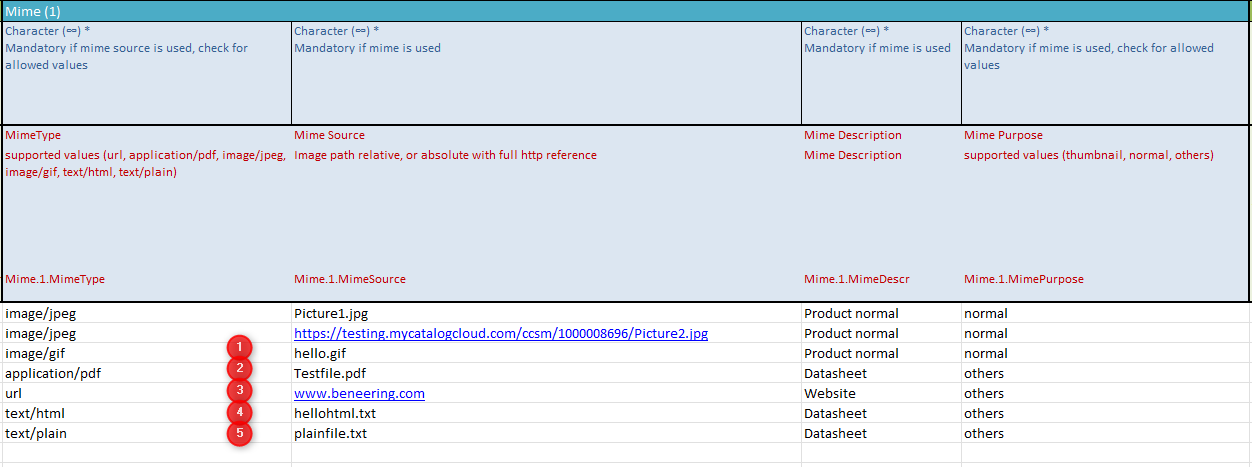
How to reference your pictures that are located in the Root directory to your catalog:
-
Reference to the uploaded picture name (don't forget the file ending)
-
Reference to the Web URL
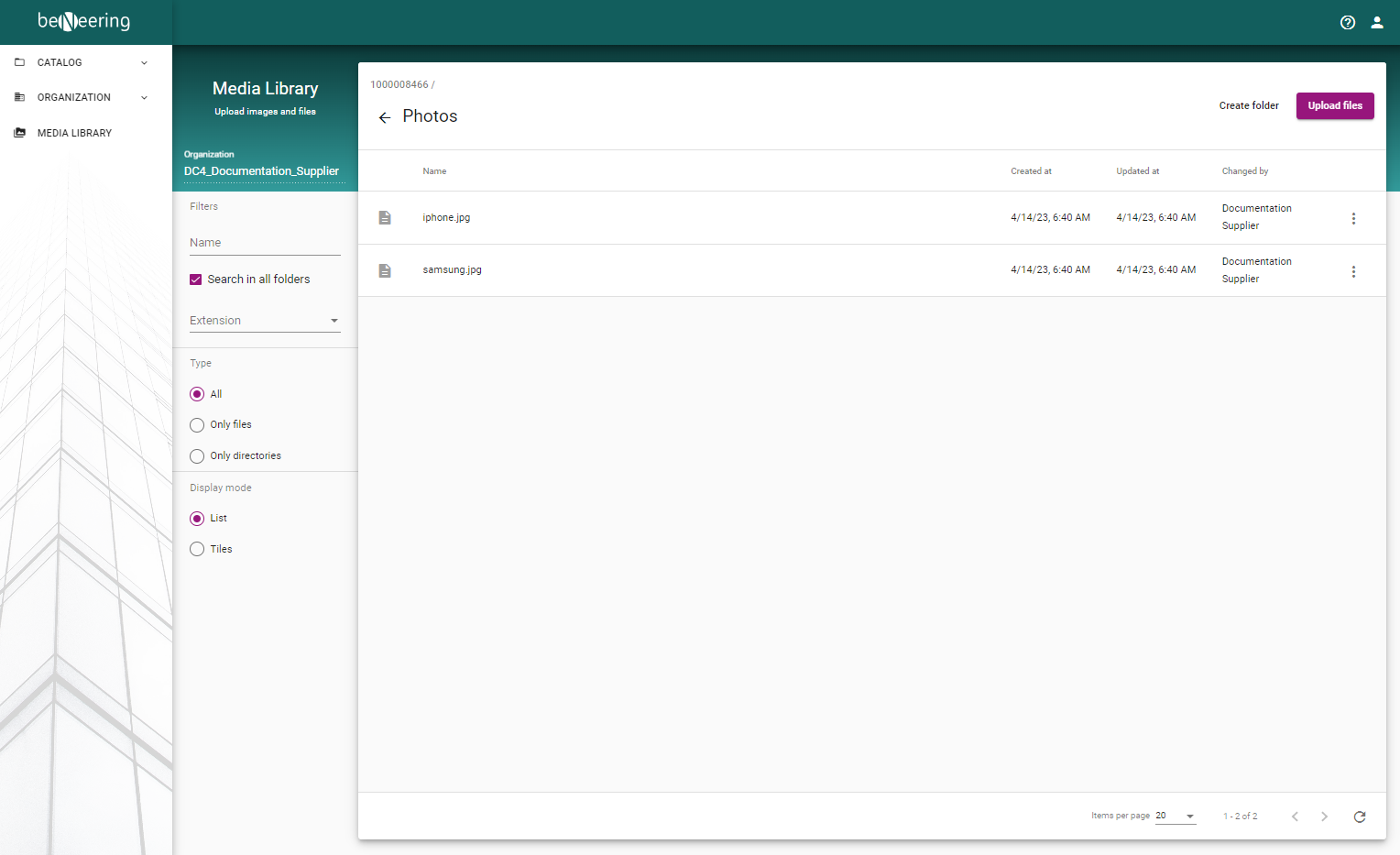
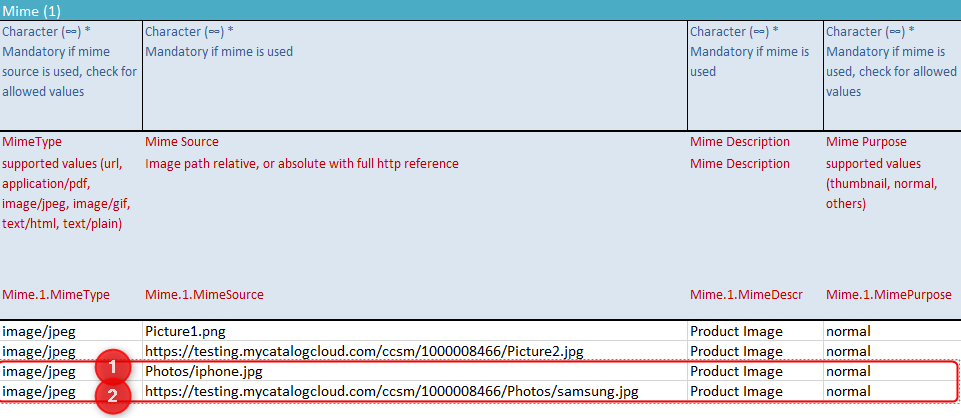
How to reference your pictures that are located in a folder to your catalog:
-
Reference to the uploaded folder and picture name (don't forget the file ending)
-
Reference to the Web URL
You can reference files such as images, PDFs, and text documents stored in the root directory when adding them to your catalog. Supported formats include gif, application/pdf, url, text/html, and text/plain.
-
GIF files: Reference the uploaded
.giffile by its file name. -
PDF files: Reference the uploaded
.pdffile by its file name. -
URLs: No reference is needed. Simply copy and paste the URL you want displayed.
-
HTML files: Reference the uploaded
.htmlfile by its file name. -
Plain text files: Reference the uploaded
.txtfile by its file name.
Connecting more than one image to one item:
To connect more than one image to a catalog item, additional Mime columns (Mime.1, Mime.2, Mime.3, etc.) can be used. Here is an example of how to use these columns:
|
Mime.1.MimeSource |
Mime.2.MimeSource |
|---|---|
|
Image1.jpg |
Image2.jpg |
Checking for missing images:
The MIME log is available for download on the Catalog History screen. This log contains all catalog items that were referenced in the catalog file, but were not uploaded to myCatalogCloud. This log can be used to check for missing images. However, please note that this log does not check for MIME objects which are referenced externally to a webshop or any other external website. This MIME check is only considered for locally hosted Mime objects on myCatalogCloud.